Introduction to Version and File Histories
What are files, and how can we work with them from the command line? How can we continue to work collaboratively?
From GUI to Command Line
Recap: The Command Line
We’ve learned how to:
- Create directories with
mkdirin Linux/Unix orNew-Item -ItemType Directoryin PowerShell - Navigate with
cdandpwdORSet-LocationandGet-Location - List contents with
lsORGet-ChildItem - Create files with
touchORNew-Item
But what exactly are files?
Introducing File Formats

The Many File Formats
What is a File? A Somewhat Reductive Answer
A file is a collection of data stored in a single unit, identified by a filename.
Files can be:
- Documents
- Images
- Videos
- Audio
- Any other collection of data
File Extensions
The file extension is the part of the file name after the period.
| Extension | Type |
|---|---|
.docx |
Microsoft Word document |
.jpg |
Image file |
.mp3 |
Audio file |
.txt |
Plain text file |
.md |
Markdown file |
Proprietary vs Open Formats
Some file formats depend on particular software ecosystems.
For example, .docx files are designed for Microsoft Word and similar word processors.
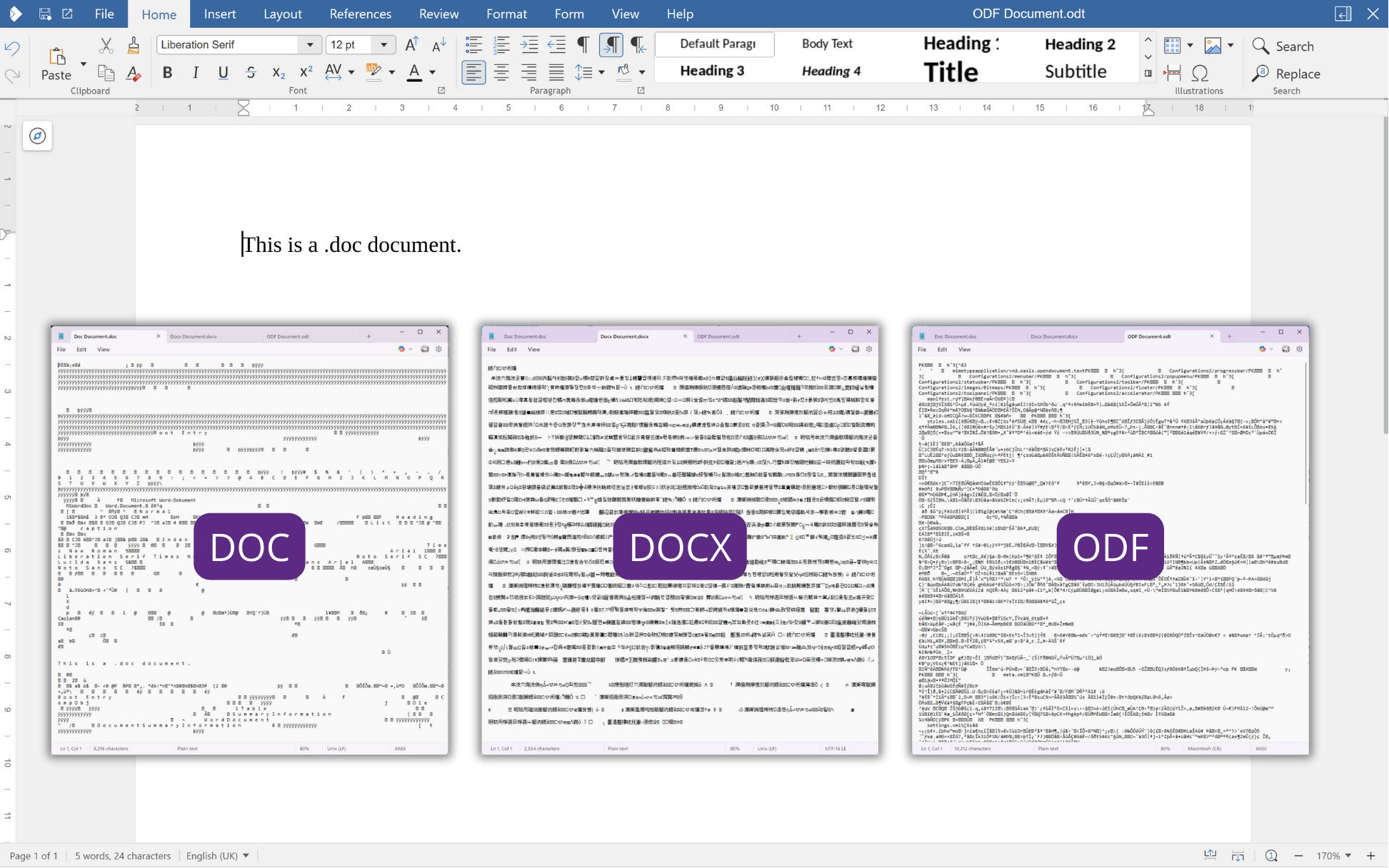
What is this?
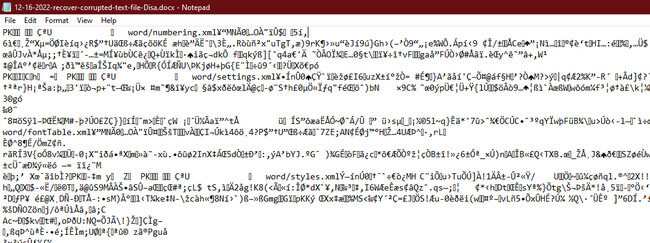
Proprietary All the Way Down
To be clear, .doc was invented in 1983 along with the first version of the software for Microsoft Word which ran on MS-DOS, whereas .docx was only introduced in 2007 as part of an XML-based update to the software.

What Are Open or Plain Text Formats?
Open or plain text based formats are easier to inspect directly.
.txtfiles work with any text editor- Main benefit? More sustainable and portable
Plain Text vs Formatted Text
A Word Document and a .txt file might look the same…
But Word contains hidden formatting that .txt does not.
In programming, we want to be explicit - so plain text is preferable.
What is Plain Text? The Unicode Definition
According to the Unicode Standard:
Plain text is a pure sequence of character codes; plain Unicode-encoded text is therefore a sequence of Unicode character codes.
Key concept: Plain text shows if it is formatted or not (we call this markup), and usually contains no formatting.
Who Decides What Counts as Text?
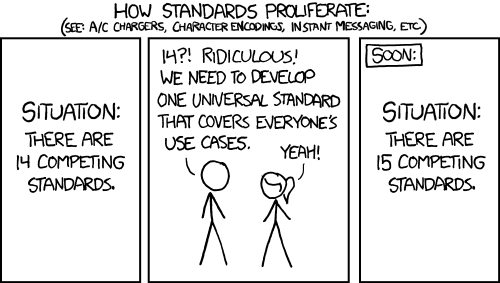
Who has heard of the Unicode Consortium?
Why Plain Text Matters
Plain text is:
- Portable - moves between programs easily
- Manipulable - responds to programmatic operations
- Sustainable - doesn’t require specific software
Edited in a text editor like VS Code
Let’s experiment with Plain Text & Project Gutenberg
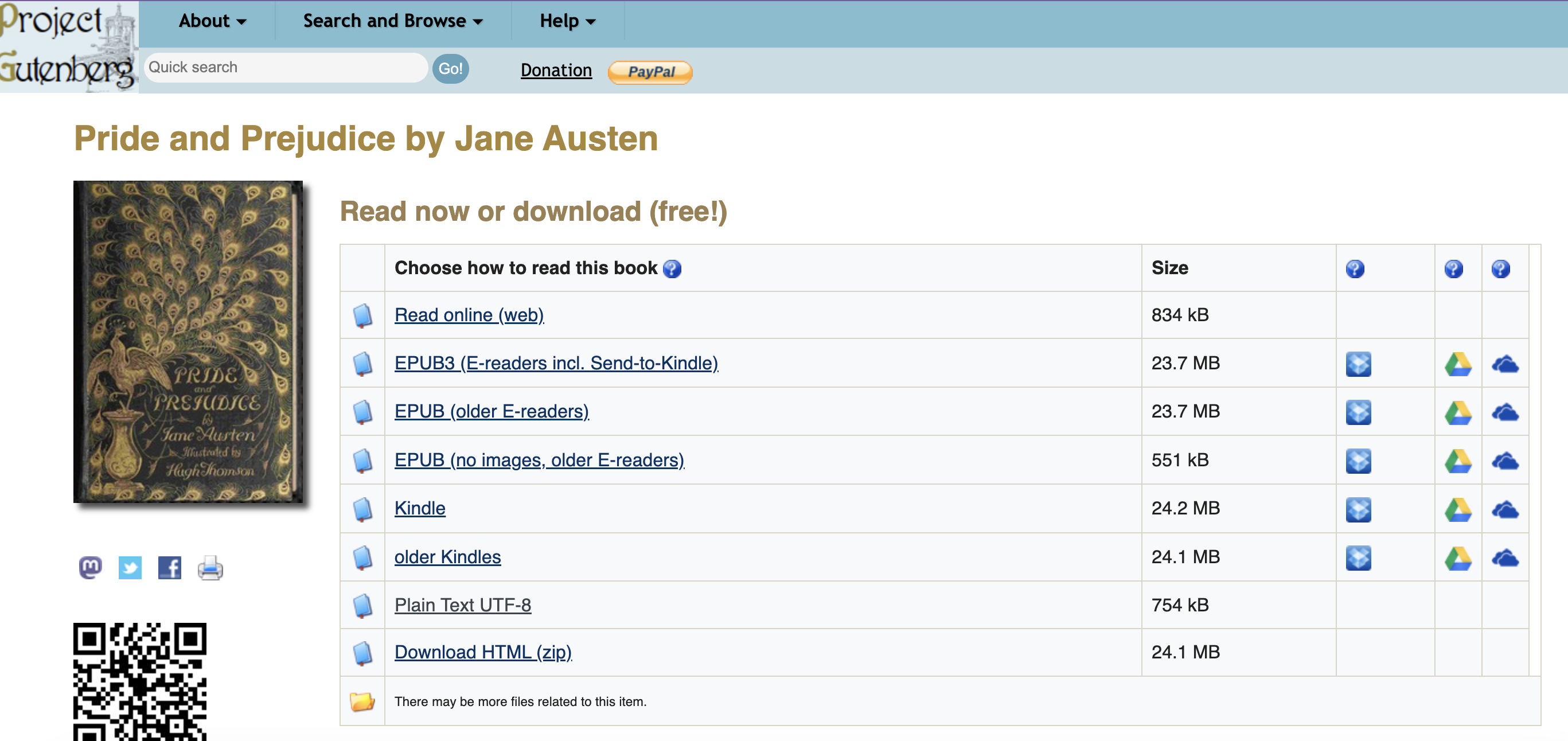
Origins of Project Gutenberg
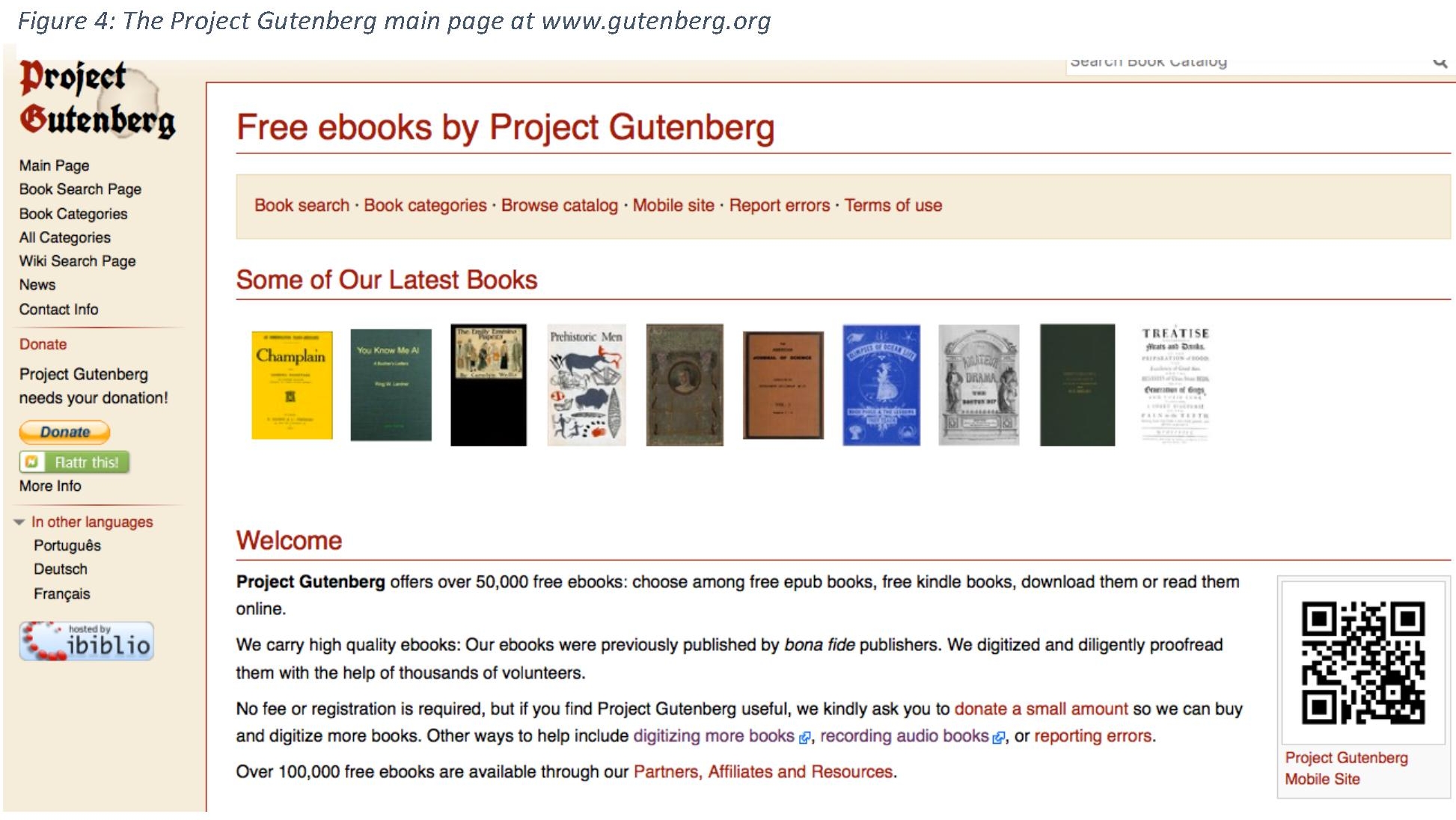
Founded by Michael Hart at UIUC in 1971
Public Domain and Access
Project Gutenberg focuses especially on public domain texts.
That means many works can be legally:
- copied
- shared
- remixed
- redistributed
How did Project Gutenberg initially start creating digital texts? What is Public Domain Day?
Downloading Files from the Command Line
The curl Command
curl= “client URL” - downloads files from the internet>= redirect output to create a new file- Result: a
.txtfile with the book’s text
Windows Alternatives
Using WSL/Ubuntu:
Working with Text Files
Displaying File Contents
macOS / WSL / Linux
cat usually works in PowerShell as an alias for Get-Content.
Counting Words
macOS / WSL / Linux
Counting Lines
macOS / WSL / Linux
Pride and Prejudice has 14,911 lines.
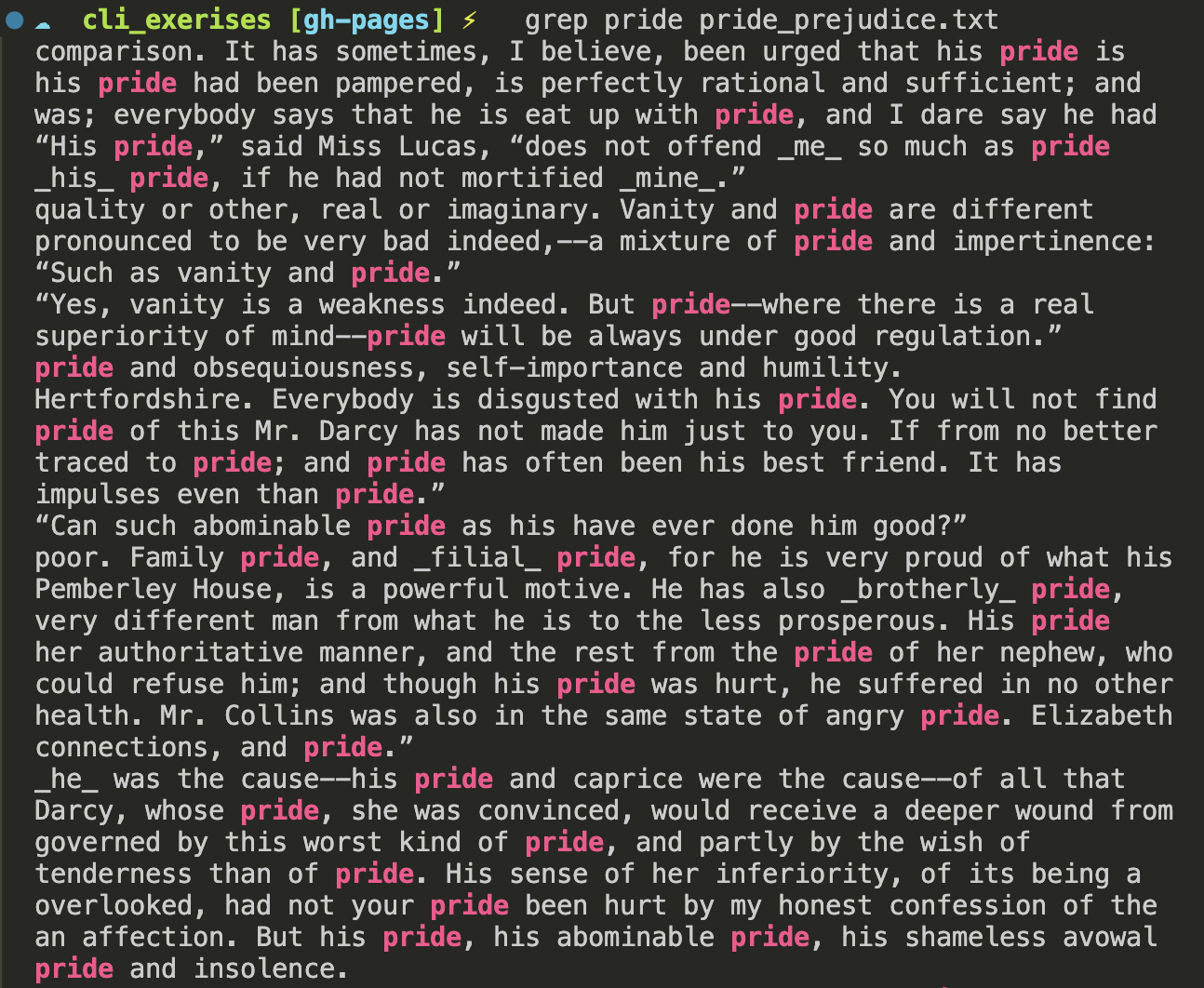
Searching for Text
macOS / WSL / Linux
Search Output
Counting Matching Lines
How many lines include “pride”?
macOS / WSL / Linux
Result: 43 lines
Your turn: How many lines include “prejudice”?
Command Summary
| Command | What it does |
|---|---|
curl / wget |
Download files from the web |
cat |
Display file contents |
wc -w |
Count words |
wc -l |
Count lines |
grep |
Search for text |
grep -c |
Count matching lines |
Introducing Markdown
What do you know about Markdown?
What is Markdown?
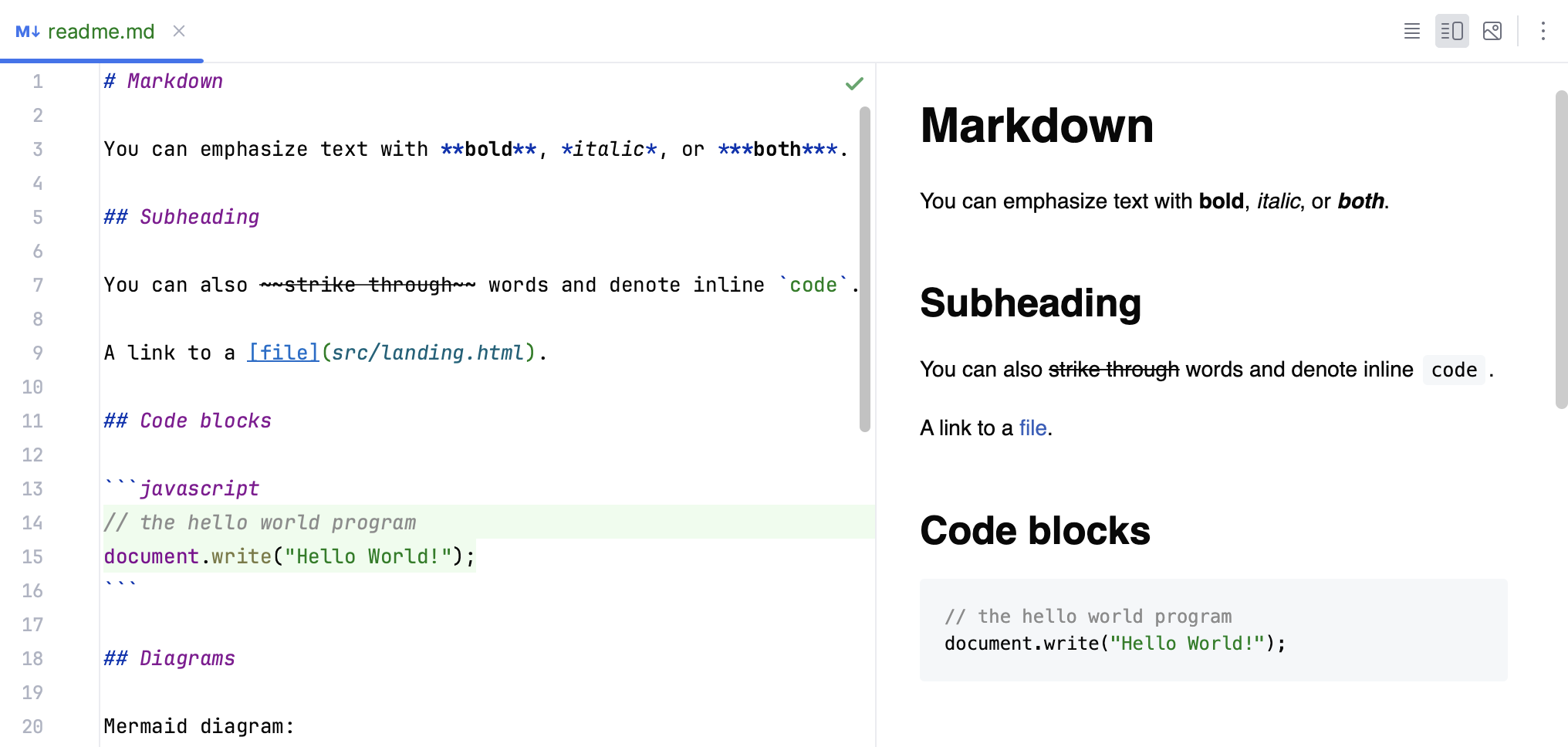
- A plain text file format (
.md) - Uses symbols to add formatting
- You’ve already seen it:
README.mdfiles!
Like .txt, but with lightweight formatting capabilities.
Creating a Markdown File
Adding Bold Text
Put two asterisks on either side:
Renders as: Culture as Data asks how cultural materials become structured data.
Adding Italics
Put one asterisk on either side:
Renders as: Culture as Data asks how cultural materials become structured data.
Adding Headings
Put a hashtag in front:
Different levels:
#= Heading 1##= Heading 2###= Heading 3
Previewing Markdown in VS Code

Markdown Preview
Click the preview icon in VS Code’s top right corner
Why Markdown? Advantage 1: Sustainability
Plain text is future-proof
- No license required
- No special software needed
- Works forever
Why Markdown? Advantage 2: Platform Agnostic
Can be rendered by any text editor
- Works on Mac, Windows, Linux
- Works on web, desktop, mobile
- No vendor lock-in
Why Markdown? Advantage 3: GitHub Integration
GitHub renders Markdown automatically
README.mddisplays on repository pages- Easy to share documentation
- Integrates with version control
Markdown: A Brief History
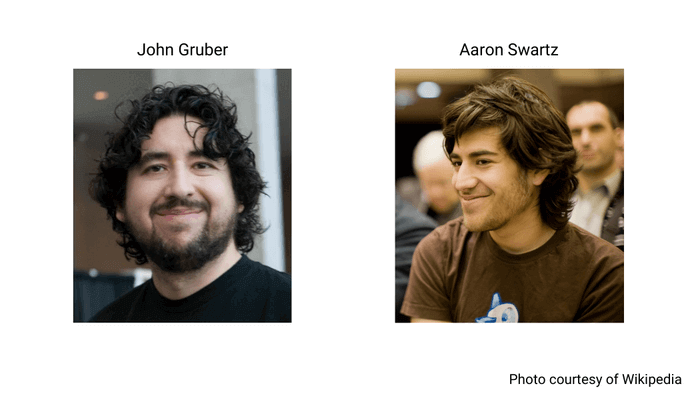
Markdown was created by John Gruber with Aaron Swartz in 2004.
Markdown: A Brief History
The goal was to create a file format that was easy to read and write, could be converted into web documents, and could be used by anyone. You can read more about the history of Markdown, in Bednarski, Dawid. “The History of Markdown: A Prelude to the No-Code Movement.” Taskade Blog, March 25, 2022. https://www.taskade.com/blog/markdown-history/.
Swartz, Creative Commons, Access
Aaron Swartz was connected to several open web projects.
- Markdown
- RSS
- Creative Commons
- Open access activism
Public Domain vs Licensed Access
| Model | What changes? |
|---|---|
| Project Gutenberg | Public domain texts, downloadable plain text |
| Creative Commons | Creators keep copyright but allow some reuse |
| JSTOR | Access shaped by vendors, libraries, and licenses |
Markdown Flavors
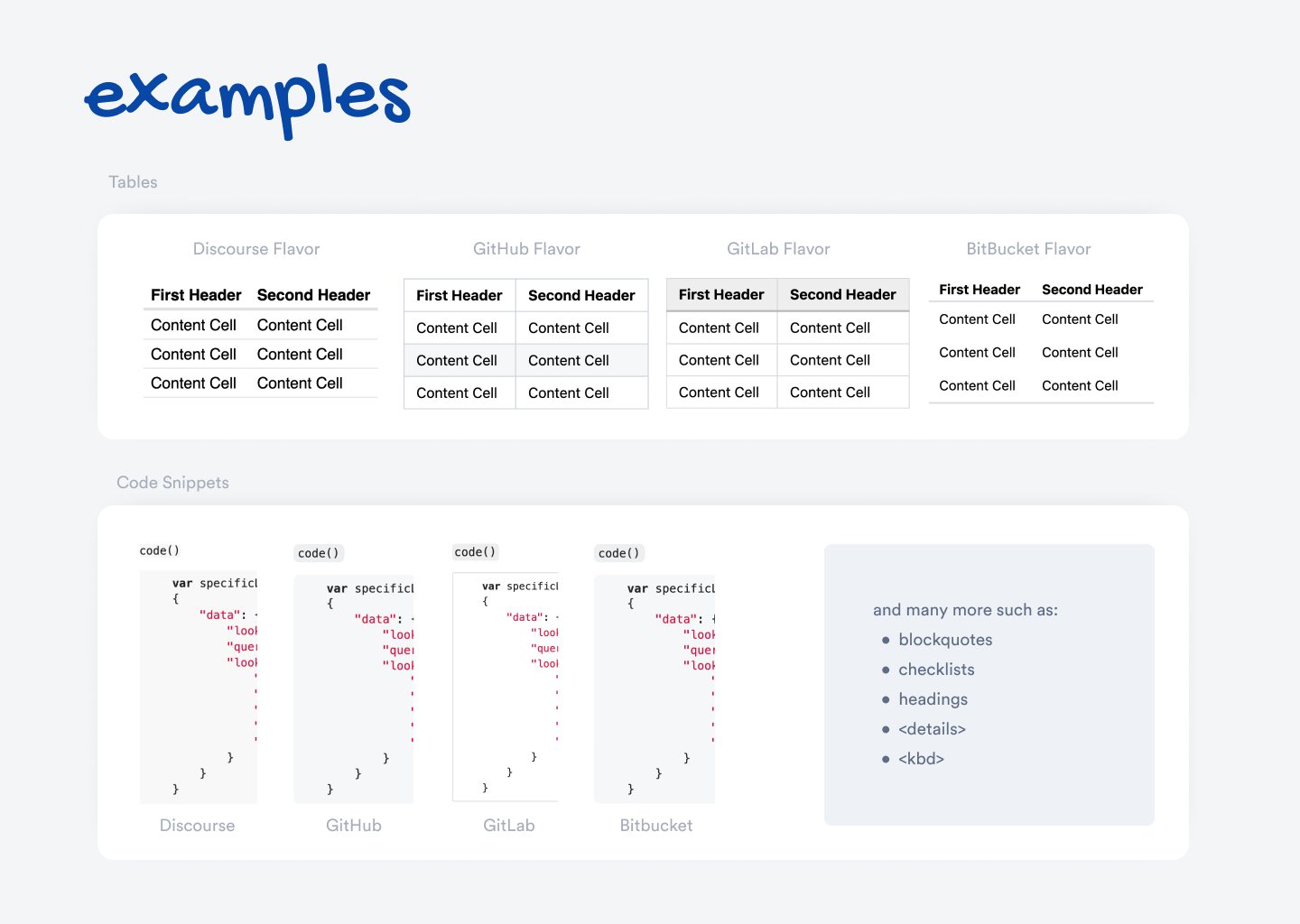
GitHub Flavored Markdown (GFM)
Created by GitHub in 2009
Adds features like:
- Tables
- Task lists
- Syntax highlighting
- Autolinks
CommonMark Markdown
CommonMark is another popular Markdown style and improvements to it are discussed in this repository https://github.com/commonmark/commonmark-spec/issues.
Practice Exercise
Currently, your README.md is your first assignment Init IS310 Homework. What are some problems with this approach?
README.mdshould indicate structure of repo, not be one assignment
init_is310
Your first goal is to clean up your repository so that your first homework assignment has its own folder: init_is310.
That folder should contain your initial README.md and any images.
Improve Your README.md
Then create a new README.md file in the root of your is310-coding-assignments repository.
Try adding:
You can use AI tools and the GitHub Markdown Cheatsheet to help you.
Helpful Resources
- AI tools, if useful
- VS Code Markdown Preview
Push your changes to GitHub when done!
Homework: Lost & Found in the Cultural Command Line
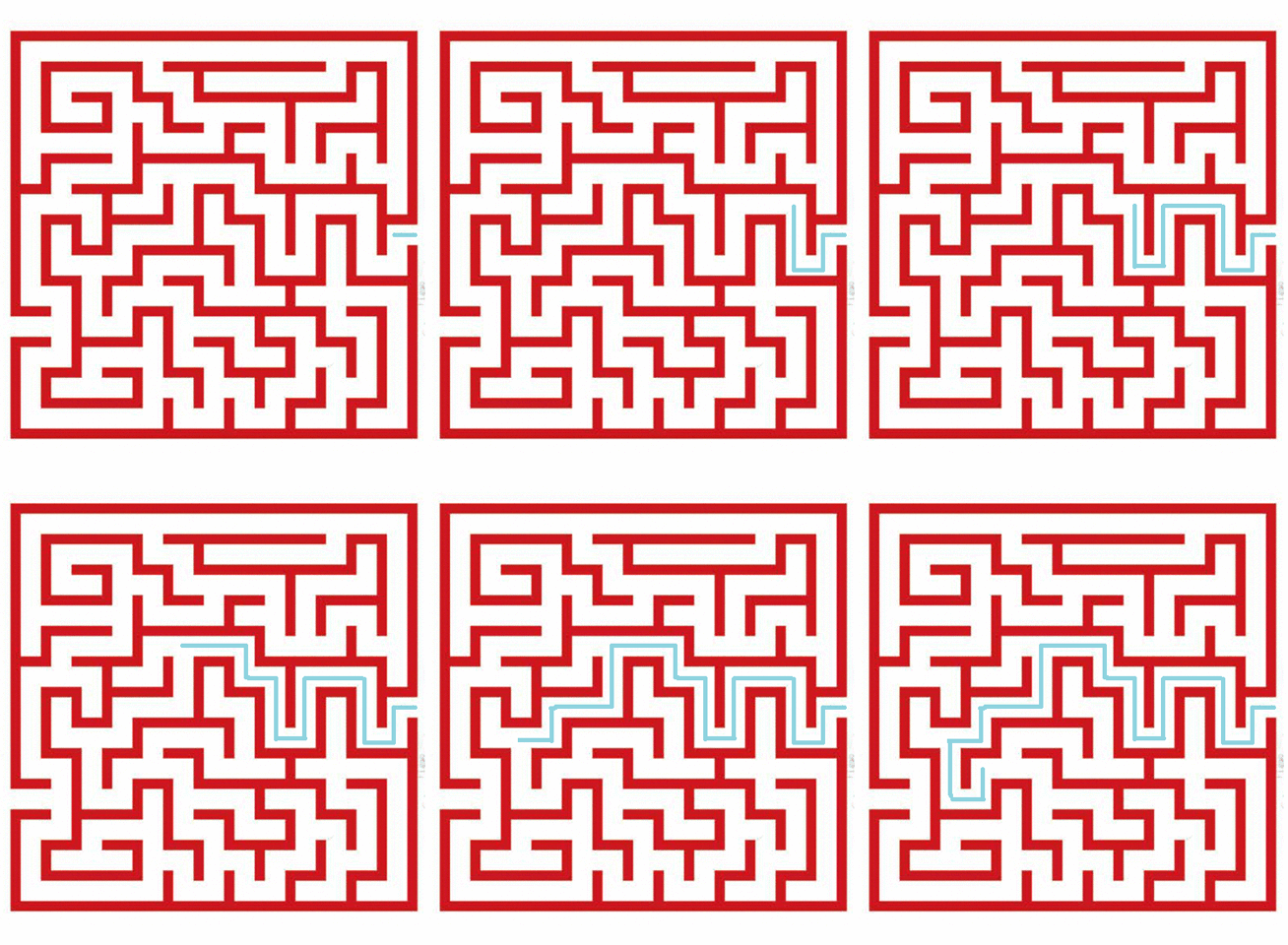
Why a Cultural Data Maze?
This assignment has two goals:
- Explore the cultural framing for your broader topic of interest
- See how your group members each approach the same topic differently
Your maze should be themed around your cultural data topic of interest.
Part 1: Build a Maze About Your Cultural Data
Create a command line maze themed around your cultural data topic of interest for your group members to solve! First, you should create a new folder in your is310-coding-assignments repository called command-line-maze. Inside this folder, you should create a maze using directories and files.
Maze Requirements
Your maze should have:
Documentation Required
Include a README.md in your maze folder:
- Instructions for solving the maze
- List of commands that might be helpful
- Your name and maze name as a header
Do NOT zip the README!
Hidden Files on Windows
Dotfiles are hidden by default on Mac/Linux, but not always in PowerShell.
Zipping Your Maze
Mac/Linux/WSL:
Submission
- Upload zipped maze to your
is310-coding-assignmentsrepo - Post link in GitHub Discussion
Need inspiration? Try the example maze
Part 2: Solve Your Group Members’ Mazes
Once your maze is posted, solve at least two mazes from students in your group!
Steps:
- Clone their repository
- Navigate to the maze folder
- Read the README.md (
cat README.md) - Unzip the maze
- Navigate and solve!
Unzipping
Mac/Linux/WSL:
Useful Commands for Solving
| Command | Use Case |
|---|---|
cd |
Navigate through directories |
ls |
See what’s in each directory |
ls -la |
Find hidden files/directories |
cat |
Read file contents |
pwd |
Check current location |
When You Solve It
For each of the two mazes you solve:
- Reply to their discussion post
- Post a screenshot of your solved maze
- Let them know you were successful!
Pay attention to how your group members framed their cultural data topic!
Additional Resources
Command Line
Questions?
Remember:
- Files = collections of data with extensions
- Plain text = portable, sustainable format
- Markdown = plain text with formatting
- Use
curl/wget,cat,wc,grepfor text work
See also: Command Line Cheatsheet