Introduction to Markup and Styling Web Documents

From Markdown to the language of the web

From Markdown to HTML

Last week we learned about Markdown. This week we’re going to take a step further and introduce you to HTML, which is the language of the web.

Introducing Markup Languages

What is a Markup Language?

From Wikipedia:

“a markup language is a system for annotating a document in a way that is syntactically distinguishable from the text, meaning when the document is processed for display, the markup language is not shown, and is only used to format the text.”

TEI: Text Encoding Initiative

Another example of a Markup language that has a long history in Computing in the Humanities is TEI, which stands for Text Encoding Initiative—a markup language used to encode texts in a way that makes them machine-readable. You can read more about TEI in “What Is TEI?” Text Encoding Initiative, 2022. https://tei-c.org/what-is-tei/.
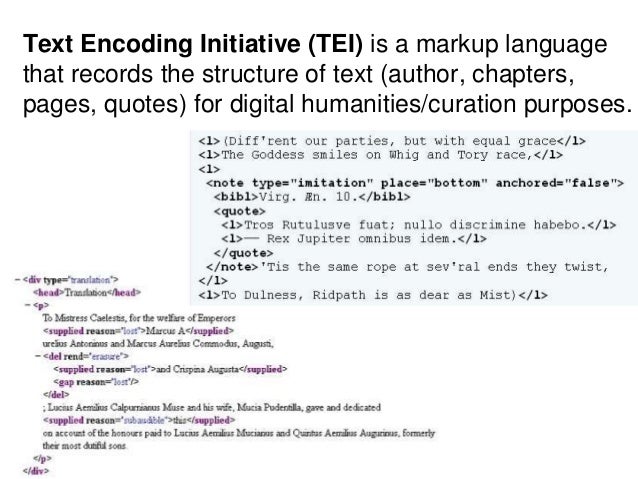
Markup Language

TEI Example: The Proceedings of the Old Bailey

The Proceedings of the Old Bailey

What is HTML?

HyperText Markup Language

Click for Definition

HTML is not a programming language—it’s a markup language used to:

  • Tell your browser how to structure web pages
  • Create documents that are rendered in your browser
  • Make content appear or act a certain way

Creating an HTML File

Let’s try an example! To create an HTML file, just use the .html extension:

touch first_page.html

Then add some content in my IDE, like we did with our Markdown files.

My first page!

Then save it and open it in your browser!

Adding HTML Tags

Now try altering your file to include HTML tags:

<p>My first page!</p>

Save it and open the file in the browser again. What do you see?

Notice anything different?

Probably not!

Inspecting the Webpage

To see the HTML tags, use Developer Tools:

  1. Right-click on your webpage
  2. Select “Inspect” or “Inspect Element”

Inspect Page

The Source Code

What you see in the inspector is called the source code—the actual HTML that creates the page:

  • Your <p> tags are there!
  • The browser was interpreting them the whole time
  • They just don’t display on the page itself

Anatomy of an HTML Tag

<p>My first page!</p>
  • Opening tag: <p>
  • Content: “My first page!”
  • Closing tag: </p>
  • Element: all three together

Common HTML Tags

How would we make it into an HTML heading? Let’s take a look at some of the more common HTML tags that we can use to create HTML elements https://www.w3schools.com/tags/ref_byfunc.asp

Common HTML Tags

Tag Purpose
<h1> to <h6> Headings (h1 is largest)
<p> Paragraph
<div> Container/division
<a> Link (anchor)
<ul> Unordered list
<li> List item

HTML Attributes

Great now what if we wanted to add a link so that you could click on that heading and go to another page (say the iSchool home page https://ischool.illinois.edu/)?

Well then we need to add an attribute.

HTML Attributes

HTML elements can have attributes—extra information about the element.

This diagram is also from the Mozilla docs and you can read more about how HTML elements can also have attributes here.

HTML Attributes

Let’s try using the anchor tag and href attribute to create an HTML element that links to https://ischool.illinois.edu/

You can find a list of HTML attributes here https://www.w3schools.com/tags/ref_attributes.asp

<a href="https://ischool.illinois.edu/">iSchool</a>

How does this new tag change our html page?

HTML Attributes

Here’s another example that we should add to our html page, using the HTML <div> tag:

<div class="header" style="background: blue;">About Me</div>

In our example, the href attribute tells a link where to navigate to when clicked. The class attribute is another common one that helps you identify elements for styling with CSS.

Nesting Tags

Tags can contain other tags in a hierarchical structure:

<ul>
  <li>Likes Coding and History</li>
  <li>Likes "What We Do in the Shadows" TV show</li>
  <li>Dislikes Mint Chocolate</li>
</ul>
  • <ul> is the parent
  • <li> elements are children
  • All <li> elements are siblings

HTML’s Limitations

HTML is a very powerful language and there are many more tags that we can use to create HTML elements. You can find a list of all the HTML tags here https://www.w3schools.com/tags/ref_byfunc.asp.

HTML’s Limitations

But HTML also has some limitations. Take a look at this helpful overview of HTML’s shortcomings by Alison Parrish (bold added for emphasis)

HTML’s shortcomings by Alison Parrish

HTML documents are intended to add markup to text to add information that allows browsers to display the text in different ways—e.g., HTML markup might tell the browser to make the font of the text a particular size, or to position it in a particular place on the screen.

HTML’s shortcomings by Alison Parrish

Because the primary purpose of HTML is to change the appearance of text, HTML markup usually does not tell us anything useful about what the text means, or what kind of data it contains. When you look at a web page in the browser, it might appear to contain a list of newspaper articles, or a table with birth rates, or a series of names with associated biographies, or whatever. But that’s information that we get, as humans, from reading the page. There’s (usually) no easy way to extract this information with a computer program.

HTML is Forgiving (But Messy)

HTML is also notoriously messy—web browsers are very forgiving of syntax errors and other irregularities in HTML (like mismatched or unclosed tags). For this reason, we need special libraries to parse HTML into data structures that our Python programs can use, libraries that can make a “good guess” about what the structure of an HTML document is, even when that structure is written incorrectly or inconsistently.

Learn More About HTML

Understanding these limitations is important as we start to work with HTML and other web technologies. For more detailed information, I recommend reading through this introduction from Mozilla on HTML.

Web Styling and Interaction

A Real Example: whatisdigitalhumanities.com

What is Digital Humanities Website

What do we see in the inspector?

Inspecting HTML in Your Browser

What is Digital Humanities Inspected

Basic HTML Document Structure

Every HTML page should have this basic structure:

<!DOCTYPE html>
<html>
  <head>
    <!-- Metadata about the page -->
  </head>
  <body>
    <!-- The actual content -->
  </body>
</html>

Selecting and Editing Elements

Selecting elements in the inspector

Selecting and Editing Elements

You can even modify CSS and HTML right in the inspector to experiment:

Editing in the inspector

Styling Websites

In this example, I altered two part of the HTML document:

The span element with the class title:

<span class="title">When Is Digital Humanities?</span>

And then the styles that are applied to that class:

.title {
    font-family: Changa, var(--sans-font);
    background: #faf;
    color: #fff;
    padding: 3px;
}

CSS: Cascading Style Sheets

CSS Structure:

selector {
    property: value;
    property: value;
}
  • Selector (.title) - which elements to style
  • Properties and values - how to style them

The Source Code Behind the Styling

To get a better sense of what this code looks like, we can look directly at the index.html file directly in the GitHub repository https://github.com/hepplerj/whatisdigitalhumanities.

What is Digital Humanities

The Source Code Behind the Styling

If we search for the <style> tags, we can see it is located between lines 42 and 58 that it contains the following code:

CSS in the actual website code

To learn more about this particular code, read the callout Deep Dive Into CSS on the course website.

Learn More about CSS

A great resource for learning more about CSS is the Mozilla docs https://developer.mozilla.org/en-US/docs/Learn_web_development/Core/Styling_basics/What_is_CSS.

Example of Advanced CSS

JavaScript in WhatIsDH

The main other tag that we should pay attention to is the script element is the other way that interactivity happens on most websites. If we search for the <script> tags, we can see it is located between lines 80 and 109 that it contains the following code:

JavaScript code in whatisdigitalhumanities

Learn more in the callout on the Deep Dive Into JavaScript on our course website.

JavaScript: Adding Interactivity

JavaScript is a programming language that adds behavior to websites:

document.getElementById("button").addEventListener("click", () => {
  // Do something when button is clicked
});

JavaScript can:

  • Respond to user actions (clicks, scrolling, typing)
  • Update page content dynamically
  • Fetch data from servers
  • Create animations and interactive features

The DOM: Document Object Model

JavaScript sees a webpage as a tree structure:

html
├── head
│   └── title
└── body
    ├── h1
    ├── p
    └── ul
        ├── li
        └── li

The Three Pillars of the Web

Technology Purpose
HTML Structure - what things are
CSS Presentation - how things look
JavaScript Behavior - what things do

The Effort Behind Web Projects

GitHub commit history for whatisdigitalhumanities

Homework: Source and Style

✨ Time for you to create some HTML ✨