Note
⚡️ This lesson has been adapted from Melanie Walsh’s chapter on Web Scraping in Introduction to Cultural Analytics & Python textbook https://melaniewalsh.github.io/Intro-Cultural-Analytics/04-Data-Collection/02-Web-Scraping-Part1.html. Many thanks to Melanie for sharing their materials!

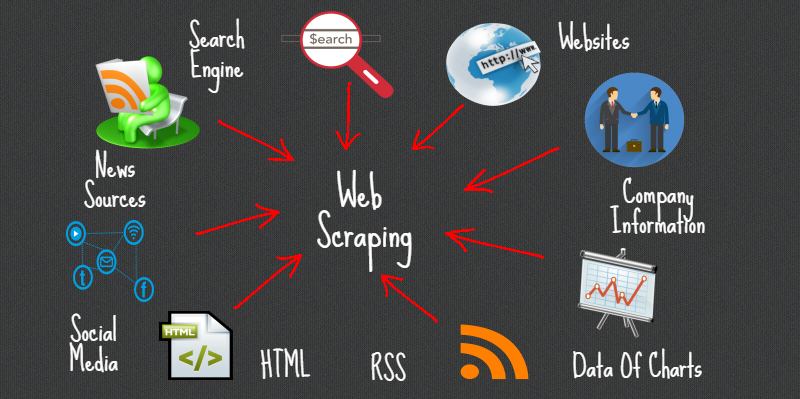
So far when it comes to working with the web, you have been creating your own HTML pages and hosting them via GitHub. But we can also use Python to interact with the web in a different way: by scraping data from web pages. The data we extract is exactly the same as what you have been writing, so elements like headers, paragraphs, and links, etc.
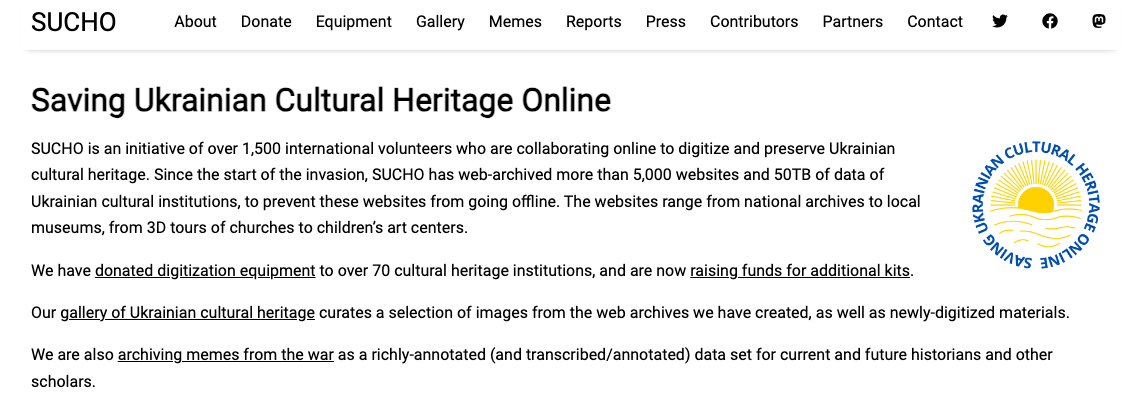
Web scraping is also what we use to preserve the web. Remember the Wayback Machine? That’s a web archive that uses web scraping to save web pages. The way it works is that it uses a web crawler to find links to web pages and then it uses web scraping to save the content of those pages.
Technically, most publicly available internet data is considered legal to collect, even if it’s not explicitly licensed. In 2019, “the Ninth Circuit Court of Appeals ruled that automated scraping of publicly accessible data likely does not violate the Computer Fraud and Abuse Act (CFAA).” However, there are some important caveats to this. For example, this ruling only applies to US based websites and the laws in other countries might be different. One of the more recent and important European developments was the passing of the General Data Protection Regulation (GDPR) in 2018, which has implications for web scraping. In particular, the GDPR bans the scraping of emails and personal names from websites. More recently, a consortium of regulators from multiple countries released a joint statement warning social media companies that they must protect user data from scraping.

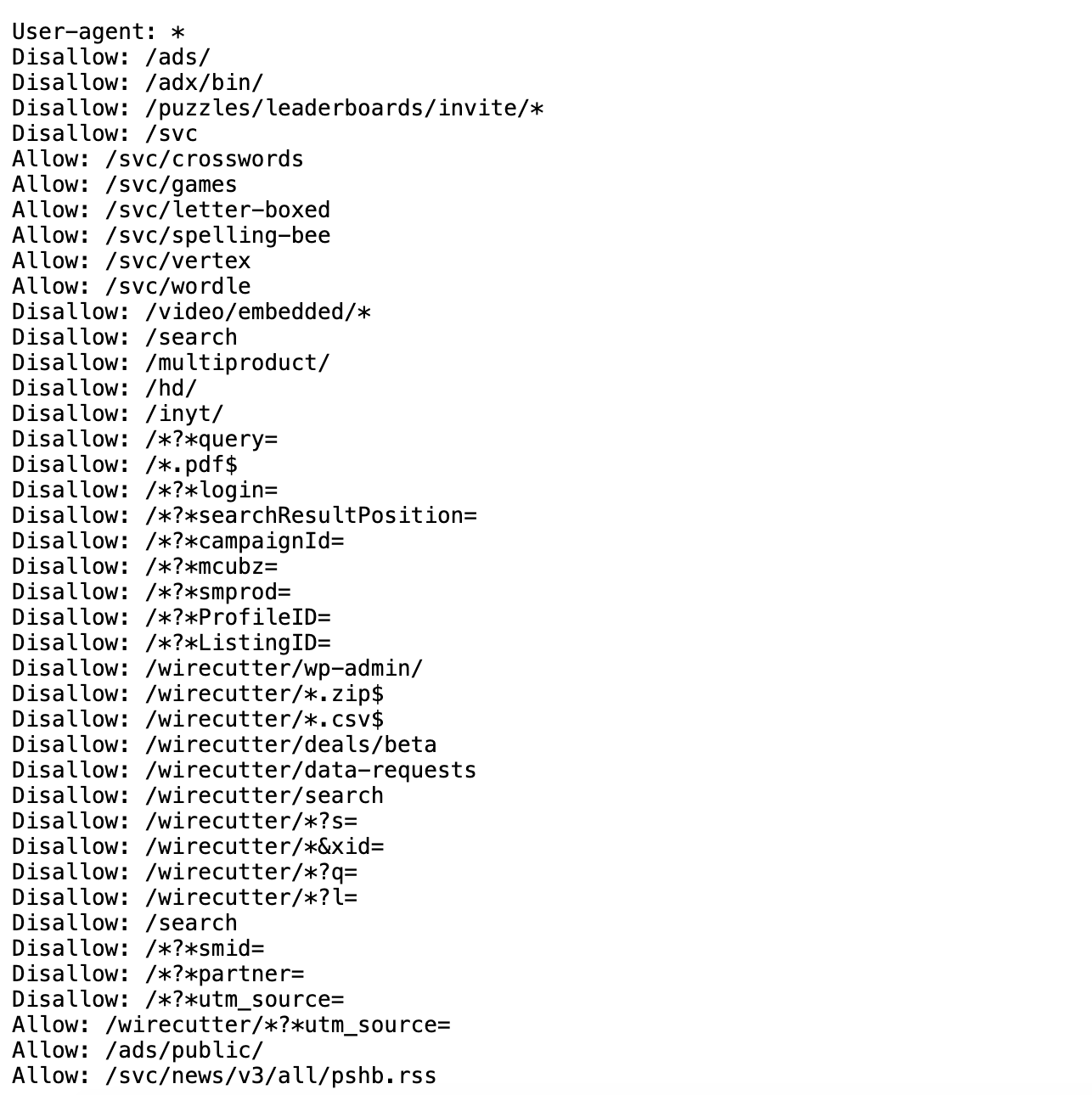
In terms of ethics, web scraping can be a bit of a grey area. It’s generally considered ethical to scrape publicly available data, but it’s not ethical to scrape data from a website that has a terms of service that prohibits scraping. It can be difficult to find those terms of service, but one more obvious example of a website banning scraping is if it prohibits scraping in its robots.txt file. A robots.txt file is a file that websites use to tell web crawlers which pages they are allowed to scrape.
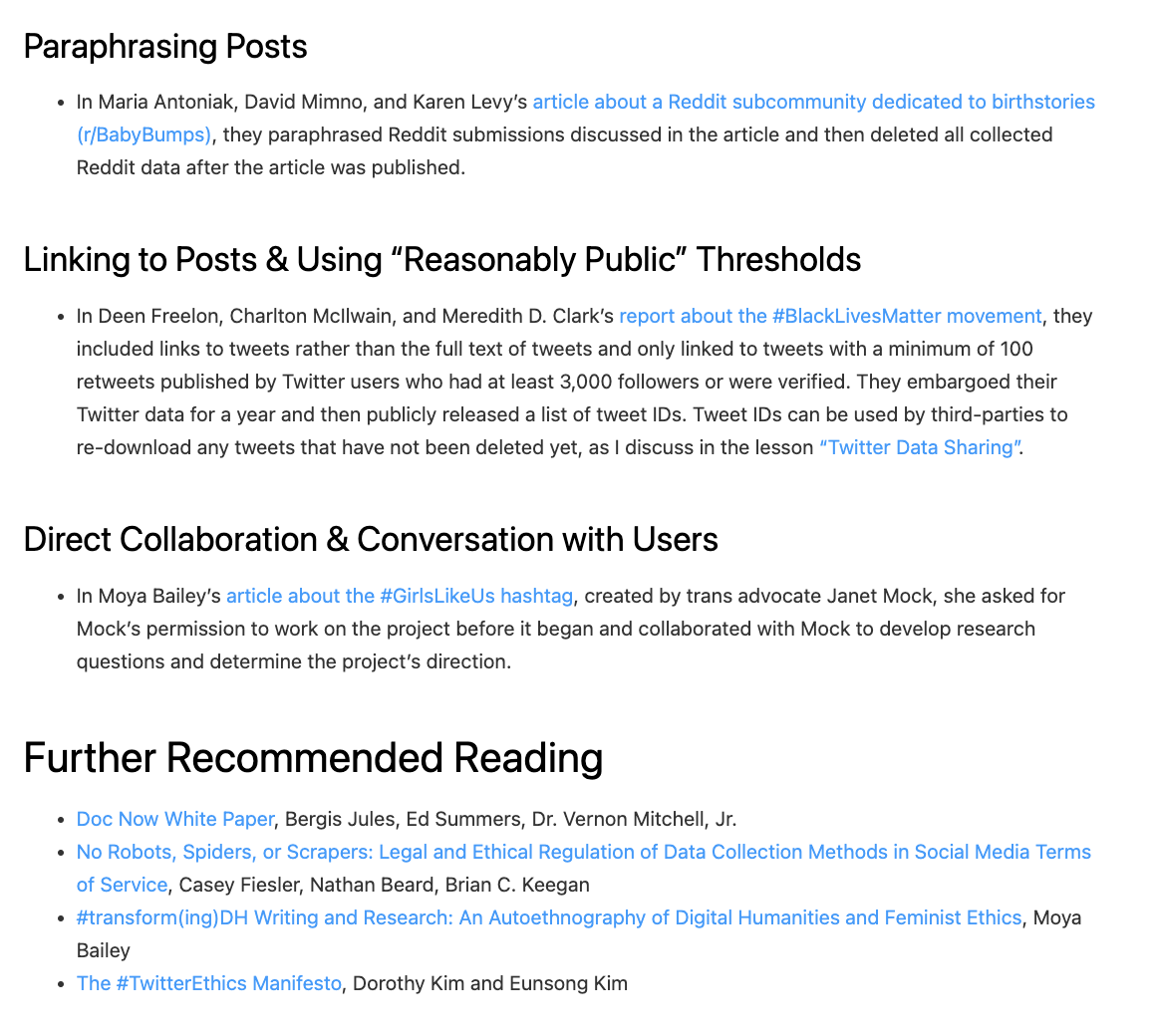
What to collect and how to collect it is a big part of the ethics of web scraping. Melanie Walsh has a great overview of some of these tradeoffs:
Just because something is legal or gets approved by an IRB does not mean it is ethical. Collecting, sharing, and publishing internet data created by or about individuals can lead to unwanted public scrutiny, harm, and other negative consequences for those individuals. For these reasons, some researchers attempt to anonymize internet data before sharing it or before publishing an article that cites a post specifically. Yet anonymizing internet data also does not give credit to internet users as creators and authors.
There is no single, simple answer to the many difficult questions raised by internet data collection. It is important to develop an ethical framework that responds to the specifics of your particular research project or use case (e.g., the platform, the people involved, the context, the potential consequences, etc.).
In my own research, I have started seeking explicit permission from internet users when I want to quote them in a published article. In this book, I only share internet data that meets a certain threshold of publicness, such as tweets from verified Twitter accounts or Reddit posts with a certain number of upvotes. This is an approach that I have developed based on some of the models and readings included below.

As you can see above, Walsh also has a great overview of different strategies and resources for this type of work, so highly recommend visiting the original chapter to explore these further in depth https://melaniewalsh.github.io/Intro-Cultural-Analytics/04-Data-Collection/01-User-Ethics-Legal-Concerns.html.
Now that we have a sense of web scraping generally, it’s time to try it out in Python. We will be using two Python libraries to do this: requests and beautifulsoup4. The requests library is a library that allows us to send HTTP requests to web pages. The beautifulsoup4 library is a library that allows us to parse HTML and XML documents. We will be using requests to get the web page and beautifulsoup4 to parse the web page.
The first step is to install our required packages into our virtual environment. If you have yet to set up a virtual environment, you can follow the instructions in the previous lesson.
If you have already created your virtual environment, then you can either activate it using Visual Studio Code or by using the terminal. If you are using the terminal, you can activate your virtual environment by running the following command:
Notice here we are installing two packages: requests and beautifulsoup4 in a single line. You can install as many packages as you want in a single pip install command, just separate them with a space.
pip install beautifulsoup4 into the terminal, we’re installing the beautifulsoup4 package.This is very detailed, but just remember that while these terms are often used interchangeably, a package is a more specific concept referring to the structure and distribution of code, whereas a library is a broader concept referring to reusable code functionality.
Finally, you’ll see that I often use pip or pip3 when installing packages. This is because pip is the package installer for Python and pip3 is the package installer for Python 3. If you’re using Python 3, you can use either pip or pip3, but if you’re using Python 2, you should use pip2. So generally, you’ll want to use pip to install packages but to double check you’re installing packages for the right version of Python, you can check the version of Python you’re using by running python --version and then use the corresponding pip command.
First, we need to create a new folder in our is310-coding-assignments called web-scraping and then create a new file called first_web_scraping.py. Then we can add the following code to our file:
Did it work for you?
You’ll likely see the following error if you try to run this code:
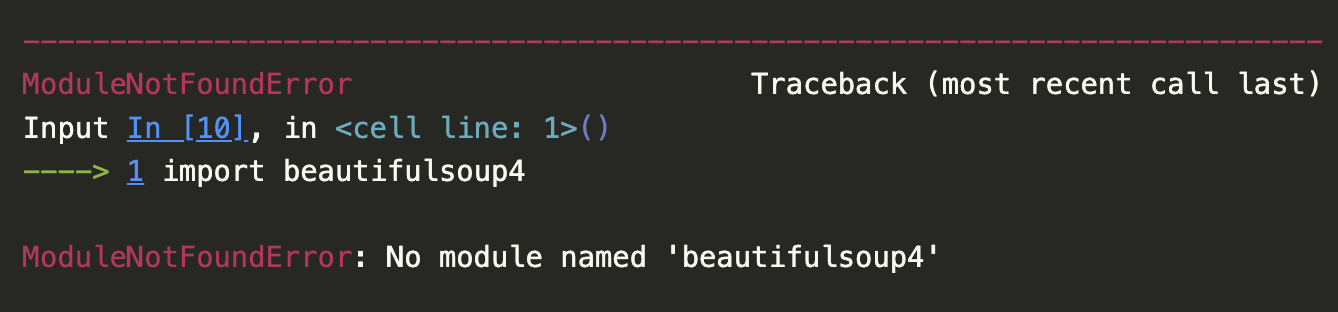
A screenshot of the error when trying to import beautifulsoup4.
But this is a great example of why we always want to read the documentation, which is available here https://www.crummy.com/software/BeautifulSoup/bs4/doc/.
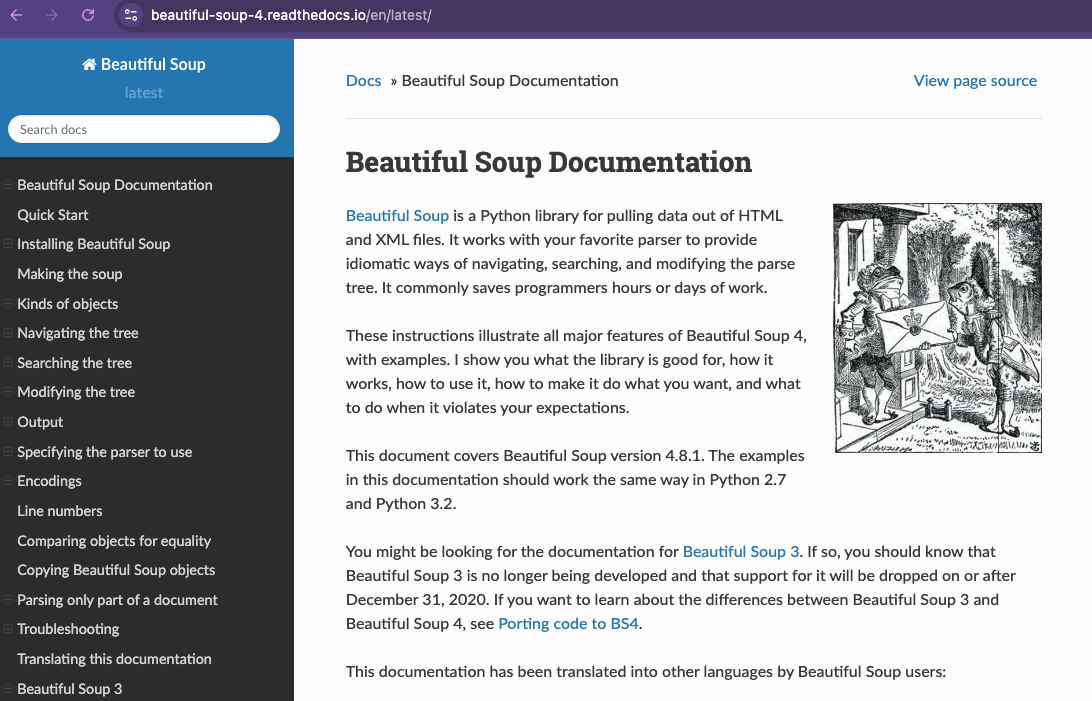
A screenshot of the BeautifulSoup documentation.
If we click on the Quick Start link, we can see that the documentation tells us to import the BeautifulSoup class from the bs4 package. So we can update our code to look like this:
Remember that the from keyword is used to import a specific module (aka Class or function in Python) from a package. Alternatively we could also import the entire package and then use the BeautifulSoup class like this:
Any other ways we could import this library?
You may also need to install a parser for BeautifulSoup. The html.parser parser is included with Python, but you can also use the lxml parser, which is faster and more lenient. You can install the lxml parser by running the following command:
There’s actually a number of possible parsers you can use with BeautifulSoup. Here’s a quick overview of the different parsers you can use with BeautifulSoup from the library’s documentation:
| Parser | Typical usage | Advantages | Disadvantages |
|---|---|---|---|
Python’s html.parser |
BeautifulSoup(markup, "html.parser") |
Batteries included Decent speed Lenient (As of Python 2.7.3 and 3.2) |
Not as fast as lxml Less lenient than html5lib |
| lxml’s HTML parser | BeautifulSoup(markup, "lxml") |
Very fast Lenient |
External C dependency |
| lxml’s XML parser | BeautifulSoup(markup, "lxml-xml")BeautifulSoup(markup, "xml") |
Very fast The only currently supported XML parser |
External C dependency |
| html5lib | BeautifulSoup(markup, "html5lib") |
Extremely lenient Parses pages the same way a web browser does Creates valid HTML5 |
Very slow External Python dependency |
I usually just use the built-in html.parser parser, but you can use the lxml parser if you want to.
In the Quick Start guide https://beautiful-soup-4.readthedocs.io/en/latest/#quick-start, we have an example of how to use the BeautifulSoup class to parse an HTML document. Let’s try this example in our first_web_scraping.py file.
html_doc = """
<html><head><title>The Dormouse's story</title></head>
<body>
<p class="title"><b>The Dormouse's story</b></p>
<p class="story">Once upon a time there were three little sisters; and their names were
<a href="http://example.com/elsie" class="sister" id="link1">Elsie</a>,
<a href="http://example.com/lacie" class="sister" id="link2">Lacie</a> and
<a href="http://example.com/tillie" class="sister" id="link3">Tillie</a>;
and they lived at the bottom of a well.</p>
<p class="story">...</p>
"""
soup = BeautifulSoup(html_doc, 'html.parser')
print(soup.prettify())In BeautifulSoup, we have four kinds of objects that we can work with: Tag, NavigableString, BeautifulSoup, and Comment. The Tag object is the most important object and represents an HTML or XML tag. The NavigableString object represents the text within a tag. The BeautifulSoup object represents the whole of the document. The Comment object represents an HTML or XML comment. We’ll just focus on the Tag and BeautifulSoup objects for now.
We usually define a BeautifulSoup object by passing in the HTML document and the parser we want to use. You’ll notice that the variable containing the BeautifulSoup object is often called soup, but you can call it whatever you want.
The core power of BeautifulSoup is that it let’s you navigate the HTML Document like a tree, which you can read more about here https://beautiful-soup-4.readthedocs.io/en/latest/index.html#navigating-the-tree.
To navigate the HTML tree we can use the find_all method, which has the following documentation https://beautiful-soup-4.readthedocs.io/en/latest/index.html#find-all.
The power of BeautifulSoup is that it let’s us use the structure of the HTML document to extract the data we want. For example, we can use the built-in find_all() method to get all the links in the document and then use the get_text() method to get the text of each link.
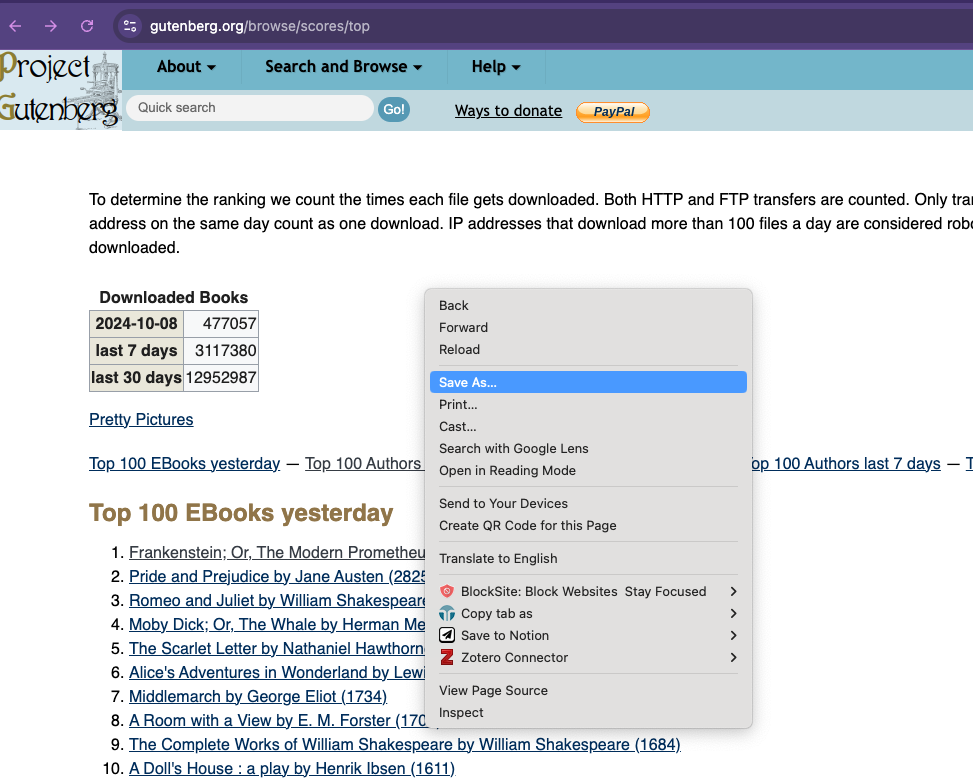
So far we’ve been using some fairly basic HTML but we can start working with an actual HTML document. Today we’ll be using Project Gutenberg’s Top 100 eBooks page. This page lists the top 100 eBooks on Project Gutenberg and we can use BeautifulSoup to scrape the titles.
First, we’re going to save the page as an HTML file. You can do this by right clicking on the page and selecting “Save As” and then saving it as top_100_ebooks.html.
Now we can try scraping the page!
from bs4 import BeautifulSoup
soup = BeautifulSoup(open("top_100_ebooks.html"), features="html.parser")
print(soup.prettify())You can see we now have the full HTML page! While it’s great to be able to see the HTML, usually we are scraping to extract structured data and turn it into a structured data format like a CSV or JSON file.
So let’s try and get the titles of the top 100 eBooks.
First, let’s take a look at the structure of the HTML document. We can use the inspect feature in your browser to do this. We can see that Top 100 EBooks yesterday is an h2 tag.
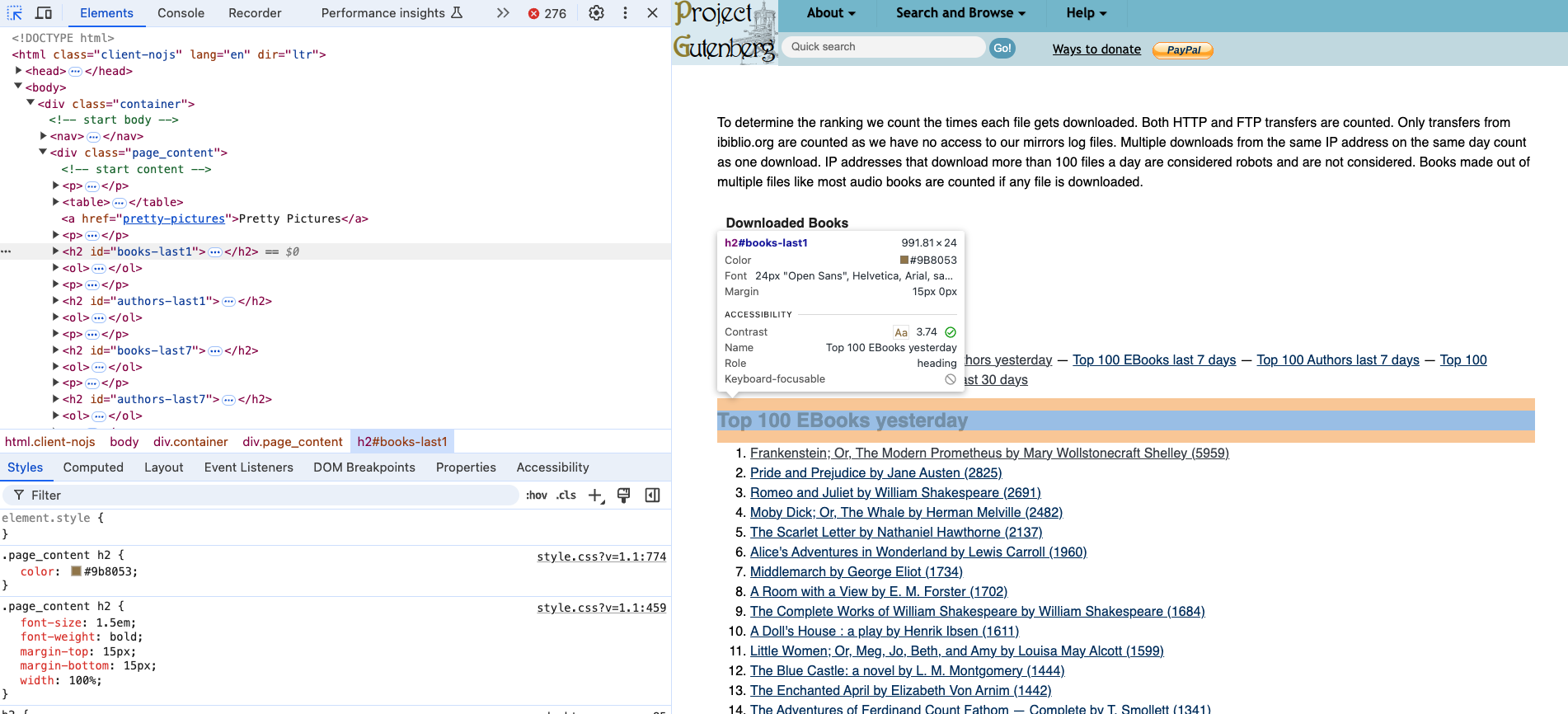
If we select the titles, we can see that they are nested in an ol tag and then each title is in a li tag. So we can use the find_all() method to get all the li tags and then use get_text() to extract the text.
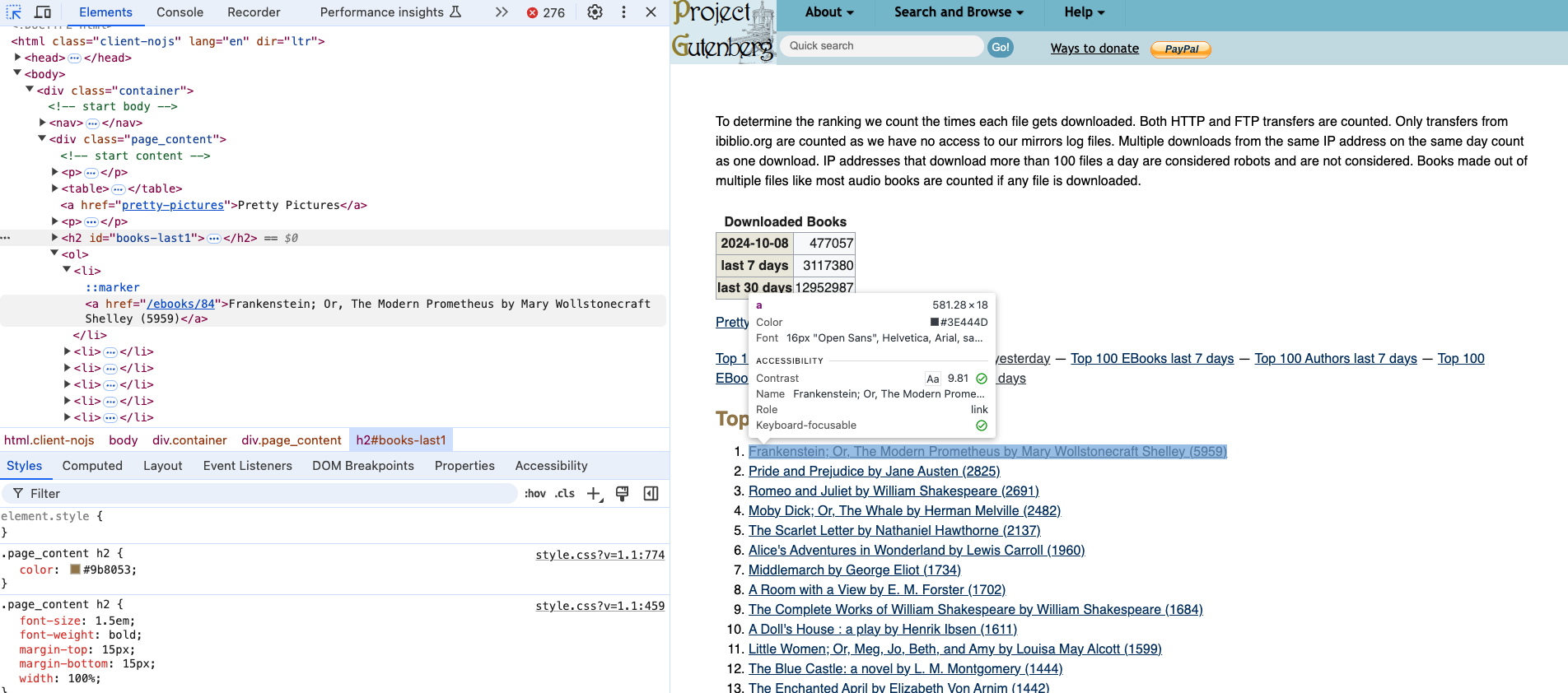
We are now officially scraping a web page 🥳!! But what if we wanted to scrape more than one? Saving each manually would get tiring really quickly!
Let’s try taking our updated code but rather than working with the saved version of the web page, let’s try to get the web page programmatically. To do this, we need to use the requests library.
The requests library is a library that allows us to send HTTP requests to web pages as if we were a web browser. As you remember from our lesson on the web, when you go to a URL in your browser, your browser sends an HTTP request to the server and the server sends back an HTTP response.
The requests library allows us to do the same thing in Python:
The core method in the requests library is the get() method, which sends a GET request to a web page. The get() method returns a Response object with useful attributes like status_code and headers.
response = requests.get("https://www.gutenberg.org/browse/scores/top")
print("Status code:", response.status_code)
print("Headers:", response.headers)A status code of 200 means the request was successful!
Putting it all together:
from bs4 import BeautifulSoup
import requests
response = requests.get("https://www.gutenberg.org/browse/scores/top")
soup = BeautifulSoup(response.text, "html.parser")
top_100_ebooks = soup.find(id="books-last1")
list_of_books = top_100_ebooks.find_next('ol').find_all('li')
for book in list_of_books:
print(book.get_text())Notice we’re using find_next() to navigate the HTML tree and get to the correct ol tag!
Now that our code is working, we can start to consider what data we actually want and how to structure it. We can use Python dictionaries and lists to organize the data before saving it:
from bs4 import BeautifulSoup
import requests
response = requests.get("https://www.gutenberg.org/browse/scores/top")
soup = BeautifulSoup(response.text, "html.parser")
top_lists = soup.find_all("h2")
data = []
for top_list in top_lists:
top_list_name = top_list.get_text()
top_list_items = top_list.find_next('ol').find_all('li')
for item in top_list_items:
data.append({"list": top_list_name, "title": item.get_text()})This creates a list of dictionaries with the list name and title!
We can also extract additional data like links from the HTML:
books = []
authors = []
for top_list in top_lists:
top_list_name = top_list.get_text()
top_list_items = top_list.find_next('ol').find_all('li')
for item in top_list_items:
if "EBooks" in top_list_name:
books.append({
"top_list": top_list_name,
"book_title": item.get_text(),
"book_link": item.find('a').get('href')
})Now we’re capturing both the title and the link!
To save the data we’ve scraped, we can use the built-in csv library:
import csv
with open('top_100_ebooks.csv', 'w') as file:
writer = csv.writer(file)
writer.writerow(['top_list', 'book_title', 'book_link'])
for book in books:
writer.writerow([book['top_list'], book['book_title'], book['book_link']])Notice we’re using the with statement to automatically close the file when done. The column headers make the data easier to understand later!
When we scrape links from web pages, they’re often relative links like /ebooks/84 instead of absolute links like https://www.gutenberg.org/ebooks/84. We need to convert relative links to absolute links before we can request them.
Now that we have the basics down, let’s look at scraping more complex websites. Many fan wikis and community-created wikis contain rich data that can be useful for research.
For example, Wookieepedia is the Star Wars wiki with over 150,000 articles! There are many fandom wikis across different fandoms and communities.
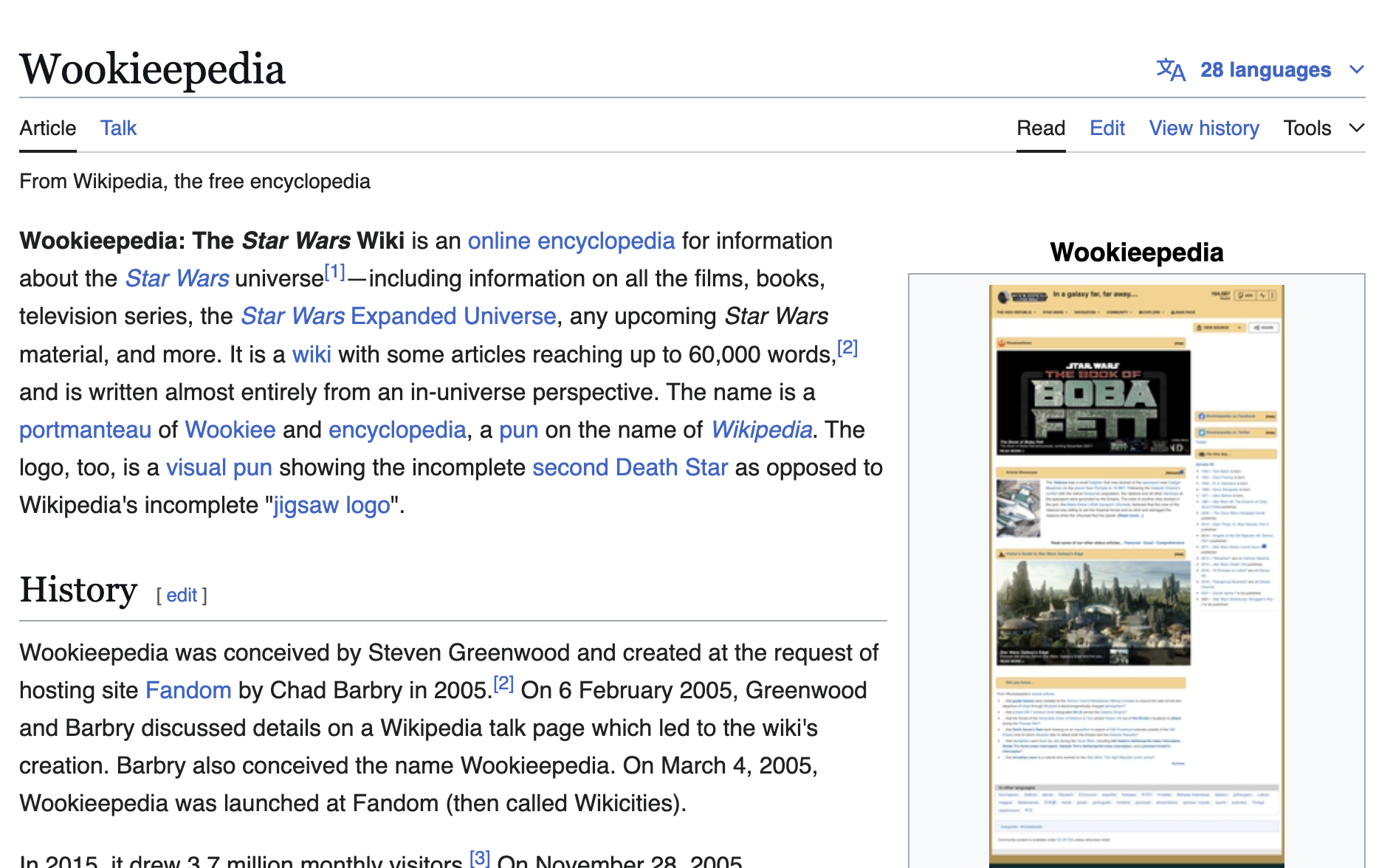
Before scraping any website, you should always check the robots.txt file and the terms of service. The robots.txt file is located at the root of a website and tells you what content can be scraped.
For example: https://lotr.fandom.com/robots.txt
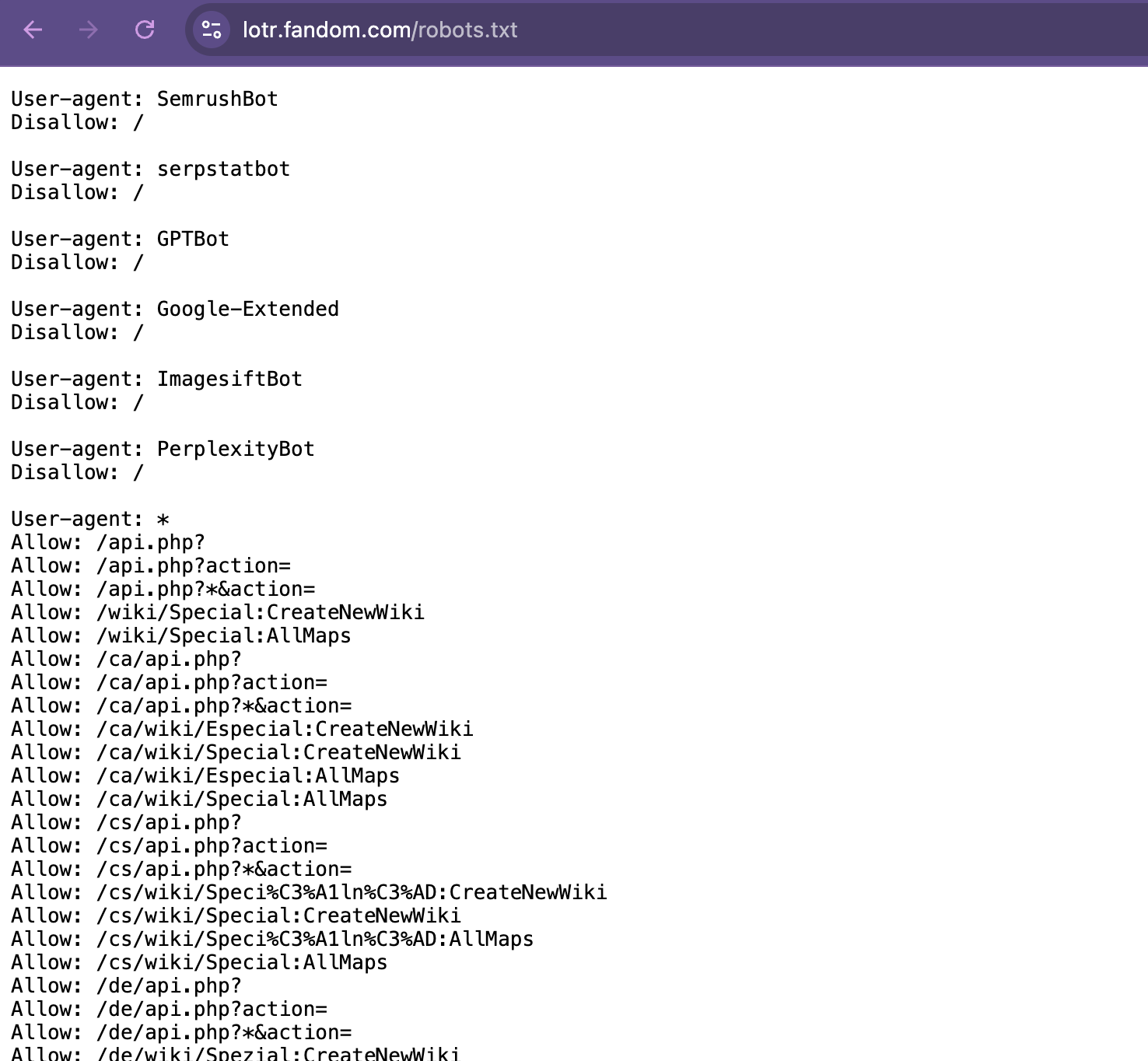
The robots.txt file contains rules for web crawlers:
Disallow: /wiki/Special:)Always check these before scraping to ensure you’re being ethical and legal!
Many modern websites use Cloudflare to protect against bot scraping. When you use requests.get(), these sites may block you with a 403 Forbidden error because they detect you’re not a real browser.
To handle this, use the cloudscraper library:
Then replace requests.get() with cloudscraper:
import cloudscraper
scraper = cloudscraper.create_scraper()
response = scraper.get("https://lotr.fandom.com/wiki/Main_Page")This mimics a real browser and bypasses Cloudflare’s protection ethically while respecting robots.txt!
Let’s try scraping character pages from a fandom wiki. First, we’ll get the web page using cloudscraper and then parse it with BeautifulSoup:
Complex websites have more complex HTML. We need to inspect the page carefully to find the right CSS classes or IDs to target. In this example, each character is in an element with the class category-page__member-link.
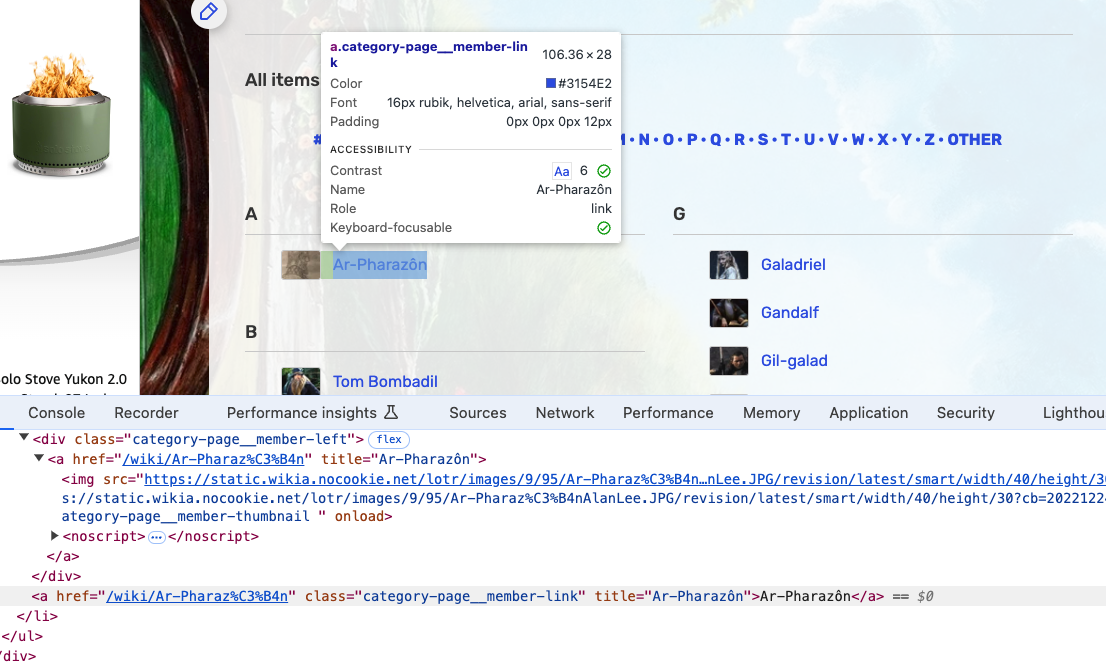
Using CSS classes, we can target specific elements:
response = scraper.get(
"https://lotr.fandom.com/wiki/Category:Canon_characters_in_The_Rings_of_Power"
)
soup = BeautifulSoup(response.text, "html.parser")
characters = soup.find_all('a', class_='category-page__member-link')
for character in characters:
print(character.get_text())The class_ parameter (with underscore) lets us search by CSS class!
For more advanced searching, we can use regular expressions (regex) with BeautifulSoup:
import re
response = scraper.get("https://lotr.fandom.com/wiki/Galadriel")
soup = BeautifulSoup(response.text, "html.parser")
# Find all language translation links
languages = soup.find_all('a',
attrs={'data-tracking-label': re.compile(r'lang-')})
for language in languages:
print(language.get_text())Regex patterns help us find elements matching a pattern, like anything starting with lang-!
As our scraping gets more complex, it’s helpful to organize code into functions:
def get_character_languages(url):
try:
response = scraper.get(url, timeout=10)
if response.status_code != 200:
return []
soup = BeautifulSoup(response.text, "html.parser")
languages = soup.find_all('a',
attrs={'data-tracking-label': re.compile(r'lang-')})
return [{"language": language.get('data-tracking-label'),
"language_name": language.get_text()}
for language in languages]
except Exception as e:
print(f"Error: {e}")
return []
# Use the function
character_languages = get_character_languages(
"https://lotr.fandom.com/wiki/Galadriel"
)Functions with error handling are more robust!
We can refactor repeated code into reusable functions:
def fetch_characters(url, category):
try:
response = scraper.get(url, timeout=10)
soup = BeautifulSoup(response.text, "html.parser")
characters = soup.find_all('a', class_='category-page__member-link')
characters_data = []
for character in characters:
character_data = {
"character": character.get_text(),
"character_link": character.get('href'),
"category": category
}
characters_data.append(character_data)
return characters_data
except Exception as e:
print(f"Error: {e}")
return []Reusable functions with error handling!
Now we can use our function to fetch different categories:
canon_characters = fetch_characters(
"https://lotr.fandom.com/wiki/Category:Canon_characters_in_The_Rings_of_Power",
"Canon"
)
new_characters = fetch_characters(
"https://lotr.fandom.com/wiki/Category:Characters_created_for_The_Rings_of_Power",
"New"
)
# Combine the data
all_characters = canon_characters + new_charactersBy combining the data, we can compare canon and new characters!
The Rich library can display our data in a beautiful table:
from rich.console import Console
from rich.table import Table
console = Console()
table = Table(title="LOTR Characters")
table.add_column("Character", style="cyan")
table.add_column("Category", style="magenta")
for character in all_characters:
table.add_row(character['character'], character['category'])
console.print(table)
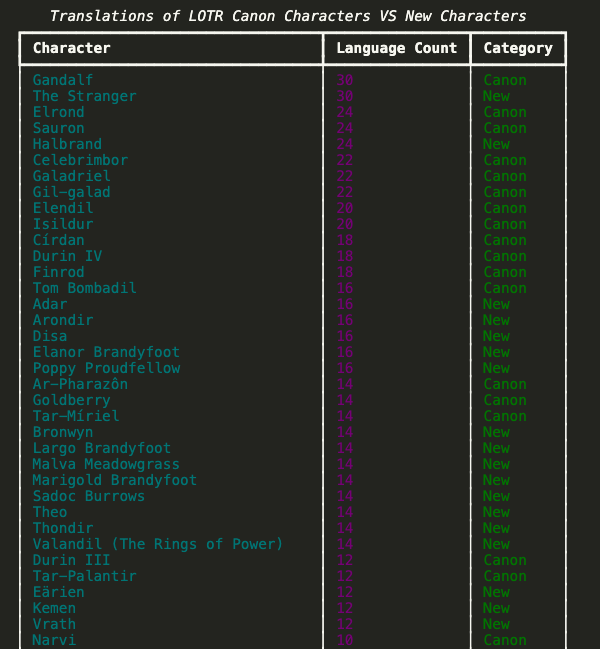
There are other Python libraries for web scraping:
Each library has pros and cons depending on your use case. BeautifulSoup is great for getting started, but these other tools are useful for more complex scenarios.
robots.txt and terms of service before scrapingrequests library gets web pages, BeautifulSoup parses the HTMLSelect any fandom wiki you’re interested in and create a web scraping project that:
robots.txt file and terms of servicerequests/cloudscraper and BeautifulSoup to scrape dataExamples of fandom wikis: - Wookieepedia (Star Wars) - Marvel Fandom (Marvel) - Harry Potter Wiki (Harry Potter) - The Office Wiki (The Office)
Deliverables:
web-scraping folder in your is310-coding-assignmentsfandom_wiki_scraping.py with your scraping codeREADME.md explaining:
robots.txt fileTips:
Once you complete the assignment:
Questions? Reach out on Slack!